-90%
License: GPL | Developer: Codecanyon
This is The Exact Same File as Distributed by The Developer (Click Here)
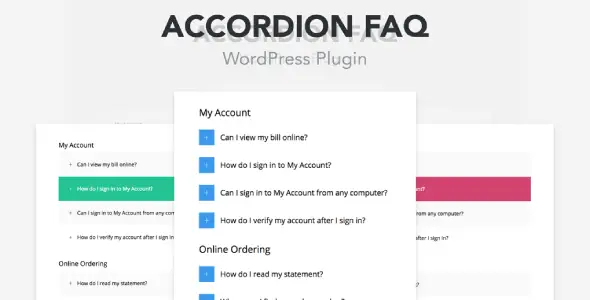
Accordion FAQ WordPress Plugin
Original price was: $29.00.$2.99Current price is: $2.99.
136
Items sold in last 4 weeks
30
People watching this product now!
Description
Accordion FAQ WordPress Plugin
Accordion FAQ WordPress Plugin gives WordPress site owners a visual way to organise questions and answers inside collapsible sections. Instead of presenting a long wall of text, the plugin keeps each answer behind a clear question heading until the visitor chooses to open it. This format can make support information, service details, policies, product guidance, and technical explanations easier to scan.
The plugin by Dazzlersoft focuses on layout and appearance as well as content entry. Its feature set includes more than twenty accordion designs, individual colour controls, icon choices, typography options, borders, hover behaviour, width and content-height settings, drag-and-drop ordering, a WYSIWYG editor, and widget support. These controls are useful when a basic browser-style disclosure element does not offer enough visual flexibility for the site’s design.
Organise Frequently Asked Questions Clearly
An effective FAQ page should help visitors identify the right question quickly. Accordion formatting supports that goal by showing an overview of questions while keeping the page compact. Readers can open the section that matches their concern and ignore answers they do not need. This is particularly useful when several answers are detailed or when the page must work comfortably on smaller screens.
The accordion format can also improve the flow of a sales or service page. Shipping information can appear below product benefits, course questions can follow an enrolment section, and support topics can sit beneath a setup guide. The visitor remains on the same page and can reveal more detail without navigating through many separate documents.
Choose From More Than Twenty Accordion Designs
The plugin includes more than twenty different accordion design layouts. A selection of ready-made styles can reduce the time required to build question panels from scratch and gives administrators a starting point for different types of websites. A corporate help page may need a quiet, structured appearance, while a creative portfolio can use a more expressive combination of colour and iconography.
Use one consistent design within a single FAQ group. Mixing several styles on the same page can make the information feel fragmented and may confuse visitors about which elements are interactive. If multiple departments or product areas require separate groups, use headings and spacing to identify them while keeping the interaction pattern predictable.
Customize Individual Colours And Borders
Individual colour controls allow the accordion to be adapted to a brand palette or page background. Question headings, active states, content panels, icons, and borders all contribute to readability. A selected item should be visibly different from a closed item, but the contrast should remain comfortable enough for longer reading.
Border customisation can make each item feel more distinct or allow the layout to blend into a minimal page. Thin separators work well in dense support lists, while stronger cards may suit pricing or feature explanations. Always check colour contrast for both normal and hover states. A design can look attractive in an editor preview but become difficult to read when placed over the live theme’s actual background.
Add Icons From Multiple Sources
The original feature set includes support for Font Awesome icons, WordPress Dashicons, Glyphicons, and custom image icons. Icons can help distinguish topics such as billing, delivery, account access, downloads, troubleshooting, or contact information. They also add a visual cue that the question heading can be opened.
Choose icons with an obvious meaning and do not use them as the only way to communicate a topic. The written question remains essential for accessibility, search context, and visitors who may not recognise a symbol. Custom images should be lightweight, consistently sized, and prepared with a transparent background when the design requires it.
Control Accordion Width And Content Height
Layout controls for button width and content height help the accordion fit different page structures. A full-width FAQ can work well on a dedicated support page, while a narrower block may sit beside a contact form, image, or service summary. The content area should have enough room for the longest answer without creating awkward clipping or excessive empty space.
Fixed dimensions need extra attention in responsive layouts. Text wraps differently on phones, translated questions may be longer, and visitors can increase browser text size. Test the final configuration with short and long answers rather than judging it with placeholder content. Flexible settings are generally safer when the amount of content can change.
Open Items On Click Or Hover
Accordion-on-hover behaviour is available for designs where opening a panel as the pointer moves across it makes sense. Hover can feel immediate on a desktop information panel, but it does not translate directly to touch screens. For general FAQ use, click or tap interaction is often easier to control because visitors decide when an answer opens.
If hover is enabled, test how the accordion behaves when a user moves the pointer toward the answer text. The panel should not close unexpectedly or cause the page to jump. Also confirm that keyboard users can reach and operate each question. Interaction should remain understandable without relying only on a mouse.
Edit Rich Answers With A WYSIWYG Editor
A WYSIWYG editor makes it possible to create answers with more structure than plain text. Depending on the content and WordPress configuration, an answer can include paragraphs, emphasis, lists, links, and other useful formatting. This is valuable for setup instructions, policy details, technical steps, and explanations that would be difficult to understand as one short sentence.
Keep formatting purposeful. Use short paragraphs, descriptive links, and lists for multi-step information. Avoid placing an entire landing page inside one accordion panel because hidden sections can become hard to navigate and maintain. If an answer needs several major subsections, consider linking to a dedicated guide and using the accordion response as a clear summary.
Arrange Questions With Drag-And-Drop Controls
Drag-and-drop ordering helps administrators change the sequence of FAQ items without recreating them. Put the questions that affect the most visitors near the top, followed by more specialised topics. On a product page, this could mean compatibility and installation first, then licensing, updates, and troubleshooting. On a service page, pricing and process questions may come before detailed policy information.
Review the order when customer enquiries change. An FAQ should reflect actual friction in the user journey, not remain fixed simply because the first version was published months ago. Moving a newly important question upward can be more helpful than adding another visual effect.
Use Google Fonts Carefully
The plugin advertises more than five hundred Google Font choices for accordion styling. Typography can help the component match the site’s headings and body copy, but using too many font families or weights adds visual inconsistency and may increase front-end requests. In most cases, the accordion should use the same typeface already established by the active theme.
If a Google Font is loaded through the plugin, review performance and privacy requirements for your audience. A locally hosted or theme-provided font may be preferable where supported. Whichever font you choose, confirm that bold question text and normal answer text remain readable at mobile sizes.
Display An Accordion In A Widget Area
Widget support allows an accordion group to appear in theme-provided locations such as a sidebar or footer. A compact widget can answer a small set of recurring questions beside a related page or offer quick help near a conversion point. It can also be used for a short information menu when the theme area has limited vertical space.
Widget areas vary significantly between themes. After changing the theme, check that the accordion still appears in the intended location and has enough width for its controls. If the widget is removed, make sure visitors can still reach the full support or FAQ page through a normal navigation link.
Practical Uses Beyond A Basic FAQ Page
- Product Questions: Explain compatibility, package contents, installation, updates, licensing, and refund conditions.
- Service Information: Organise pricing, timelines, revisions, onboarding, deliverables, and communication expectations.
- Course And Event Details: Present schedules, prerequisites, certificates, venue guidance, and registration answers.
- Technical Documentation: Break troubleshooting steps and configuration notes into manageable sections.
- Policies: Summarise shipping, returns, privacy, account access, and acceptable-use information.
- Team Or Process Sections: Use collapsible panels for biographies, workflow stages, or departmental information when the layout suits the content.
Although an accordion can contain many kinds of information, do not hide essential warnings, prices, or legally required disclosures solely to make the page look shorter. Important information should remain prominent and easy to discover.
Bootstrap Framework And Theme Compatibility
The plugin is based on the Bootstrap framework. This provides a familiar layout foundation, but a WordPress theme or another plugin may also load Bootstrap styles. When multiple components use different Bootstrap versions, class names or JavaScript behaviour can conflict. Test the accordion with menus, modals, tabs, page builders, and other interactive elements already active on the site.
If a styling issue appears, identify whether the theme is overriding the accordion or the plugin is affecting another component. Custom CSS may solve a limited presentation issue, but broad overrides should be avoided. A staging site gives you room to test without disrupting the public page.
Visual Composer And Legacy Compatibility Notes
The original marketplace information lists compatibility with older Visual Composer releases, Bootstrap 3, and WordPress versions from the same period. The item was last updated on the marketplace in May 2018. That historical information is important because it does not confirm compatibility with every current WordPress, PHP, browser, page-builder, or theme version.
Before production use, install the package on a staging copy that matches the live server. Create and edit an accordion, save its settings, test the front end while logged out, and inspect mobile and keyboard behaviour. Also check the browser console and PHP error log. A successful activation alone is not enough evidence that every design or editor feature works in a modern environment.
SEO And Content Structure Guidance
Accordions can improve readability, but they do not guarantee search rankings. Write each question in the language a real visitor would use and provide a direct, accurate answer. Add a descriptive page title and introduction so the topic is clear before the first collapsed item. Avoid repeating the same keyword in every question or filling answers with unrelated text.
The product’s documented feature list does not establish that it outputs FAQ structured data. If rich-result markup is required, inspect the final HTML and use a separate, appropriate schema solution where necessary. Visible answers, structured headings, internal links, page speed, and overall usefulness remain more important than treating the accordion as an automatic SEO shortcut.
Recommended Setup Workflow
- Back up the website and prepare a staging environment that matches production.
- Install and activate the Accordion FAQ WordPress Plugin package.
- Create a focused group of real questions and write concise, useful answers.
- Choose one of the available accordion layouts as the visual starting point.
- Set colours, borders, icons, typography, width, and content-height behaviour.
- Arrange questions in priority order with the available drag-and-drop controls.
- Place the accordion on the intended page or in a supported widget area.
- Test open and close behaviour with a mouse, keyboard, phone, and tablet.
- Check long answers, links, lists, custom icons, and any hover configuration.
- Clear caches and review the page while logged out before publishing.
GPL Download And Important Notes
This product is offered as a downloadable package under the GPL information displayed on GPL Care. The package provides the distributed plugin files for compatible WordPress installations. It does not automatically include an Envato purchase code, a Dazzlersoft account, direct developer support, or account-based marketplace services. Any automatic update mechanism tied to an original licence may be separate.
For related user-interface tools, browse the WordPress Interface Elements Plugins Collection. You can also explore the full WordPress Plugins Collection for other downloadable solutions. Always confirm compatibility and create a backup before adding a legacy interface plugin to an important live site.
Frequently Asked Questions
How Many Accordion Designs Are Included?
The documented feature set includes more than twenty accordion design layouts, providing several visual starting points for FAQ and collapsible-content sections.
Can I Change Colours And Borders?
Yes. Individual colour schemes and border customisation are part of the plugin’s design controls. Test contrast in normal, hover, and open states.
Which Icon Options Are Available?
The original feature list includes Font Awesome, WordPress Dashicons, Glyphicons, and custom image icons.
Can I Format Answers With Rich Text?
A WYSIWYG editor is included for creating formatted answer content. Keep the structure simple and test links, lists, and longer paragraphs on the live theme.
Can I Put An Accordion In A Widget Area?
Widget support is listed as a feature. Availability and layout depend on the widget areas provided by the active WordPress theme.
Does The Plugin Automatically Add FAQ Schema?
FAQ structured data is not established by the documented feature list. Inspect the output and use an appropriate schema implementation separately if required.
Will This Older Plugin Work On The Latest WordPress Version?
Compatibility cannot be assumed. The marketplace listing shows older WordPress and Visual Composer compatibility and a 2018 update date, so staging tests are essential.
Create A More Scannable Help Experience
Accordion FAQ WordPress Plugin is designed for administrators who want more visual control than a plain question-and-answer list provides. Its selection of accordion layouts, colours, borders, icon libraries, custom images, Google Fonts, WYSIWYG editing, width and height controls, hover option, drag-and-drop ordering, and widget support can help organise information for many types of WordPress sites. The best result comes from pairing those design options with concise questions, accurate answers, accessible interaction, and careful compatibility testing.
GPLCARE Updater Plugin
GPLCARE Updater Plugin Tutorial
New to GPLCARE? Watch this step-by-step tutorial to learn how to install, activate, and use the GPLCARE Updater Plugin directly from your WordPress dashboard.

Easy Installation Guide
Install the GPLCARE Updater Plugin in a few steps.

Update Management
Update themes and plugins directly from WordPress.

Tips & Best Practices
Keep your website updated and secure.
Support and updates
What is included?
Documentation You will find the item’s documentation within the .zip file you download.
Updates Available
You'll always have access to the latest features, fixes, and security updates. Simply re-download the item to get the most up-to-date files. You can find the updates change-log on the item’s description.
What is not included?
Author Support
Author support is not available for items downloaded on GPLCare. If you need support from this item’s author, we recommend you take a look at this item on Original Author. If support is offered, you will receive 6 months of support when you purchase the item there.
Technical support from GPLCare
GPLCare doesn’t offer technical support for individual items. If you need further assistance, please visit our Help center and create Support Tickets here.
Automatic updates All updates require manual installation.
Only logged in customers who have purchased this product may leave a review.
Related products
-90%
Original price was: $39.00.$3.99Current price is: $3.99.

-90%
Original price was: $29.00.$2.99Current price is: $2.99.
-90%
Original price was: $29.00.$2.99Current price is: $2.99.
-90%
Original price was: $29.00.$2.99Current price is: $2.99.
Reviews
Clear filtersThere are no reviews yet.