-90%
License: GPL | Developer: Codecanyon
This is The Exact Same File as Distributed by The Developer (Click Here)
Accordion Footer Menu Widget For Elementor
Original price was: $29.00.$2.99Current price is: $2.99.
208
Items sold in last 4 weeks
5
People watching this product now!
Description
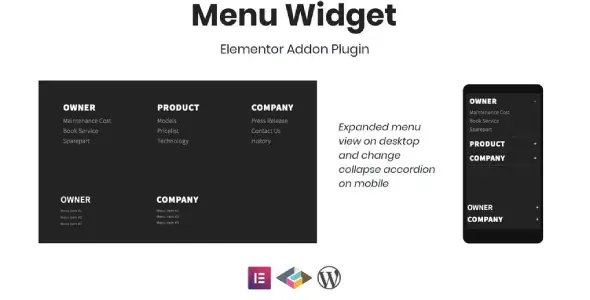
Accordion Footer Menu Widget For Elementor
Accordion Footer Menu Widget For Elementor is a focused Elementor add-on for building responsive footer link groups. Its defining behaviour is simple and practical: the menu can stay expanded in a desktop footer, then transform into a collapsible accordion on mobile screens. This lets large websites keep useful navigation visible on wide layouts without forcing phone users to scroll through several permanently open columns.
The widget is designed for Elementor and offers a coding-free workflow with heading styling, typography controls, and toggle icon selection. Instead of writing a custom responsive menu script or maintaining separate desktop and mobile footer markup, an Elementor user can configure a single menu presentation that adapts to the available screen size.
Create A Cleaner Responsive Footer
Footers often contain several groups of links: company information, services, customer support, policies, account pages, resources, and contact options. Four expanded columns can look organised on a laptop, but the same content may become a long and tiring list on a phone. Collapsing each group behind a clear heading gives mobile visitors a faster overview and lets them open only the section they need.
On desktop, keeping the groups expanded supports quick scanning and uses horizontal space efficiently. This responsive change is the core reason to use a dedicated accordion footer widget instead of a general accordion placed at the bottom of the page. The component is built around navigation behaviour rather than long question-and-answer content.
Expanded On Desktop And Collapsed On Mobile
The widget presents the menu list in an expanded form on desktop and changes it into an accordion-style interface on mobile. This creates a familiar pattern across devices without removing important footer destinations. Desktop users can see multiple categories at once, while mobile users receive compact headings that reveal the related links on demand.
Test the breakpoint behaviour with the actual footer design. A tablet in portrait orientation may need the compact version, while a wide tablet could support the expanded layout. The surrounding Elementor columns, container widths, theme breakpoints, and custom CSS can influence when the footer begins to feel crowded. Preview at several widths rather than checking only one desktop and one phone size.
Build The Menu Without Custom Coding
The coding-free workflow is useful for designers and site administrators who already build templates with Elementor. Add the widget to the footer area, choose the menu content, configure the heading and icon presentation, and style it through the available controls. This avoids maintaining a separate JavaScript accordion and reduces the amount of custom theme code needed for a common responsive pattern.
Coding-free does not mean testing-free. The widget still interacts with WordPress navigation, Elementor templates, the active theme, caching, and front-end optimisation. After configuration, confirm that every link works, the accordion opens reliably, and the same footer appears on all intended page types.
Style Footer Menu Headings
Heading styling controls help each menu group fit the site’s footer design. A heading can identify a category such as Products, Company, Support, Resources, or Legal. These labels should be brief, specific, and visually distinct from the links beneath them. On mobile, the heading also becomes the control visitors use to open the group, so its size and contrast directly affect usability.
Maintain a clear hierarchy across the footer. If the brand logo and newsletter form are already prominent, menu headings can use a smaller but consistent style. Avoid headings that look exactly like ordinary links, and leave enough vertical spacing for touch interaction when the accordion mode is active.
Control Typography For Better Readability
Typography settings make it possible to align the menu with the theme’s visual system. Font family, size, weight, line height, and letter spacing can affect how quickly visitors recognise section headings and read link labels. The best choice is usually a restrained one that matches existing body and navigation styles.
Check typography on the smallest supported screen. Long translated labels, increased browser text size, and bold fonts can cause wrapping. A two-line heading should not overlap the toggle icon or make the open state unclear. Use adequate line height and allow the layout to grow naturally when text occupies more space.
Select A Clear Toggle Icon
Toggle icon selection allows the mobile accordion state to be communicated visually. Common choices include a plus and minus pair or an arrow that changes direction. The icon should make it clear that the heading can be expanded, and its open state should be distinguishable from its closed state.
Place the icon consistently across all footer groups and preserve enough space between the label and the control. Do not depend on icon movement alone; the accordion should also expose an appropriate state to assistive technology where the widget’s markup supports it. Keyboard focus and visible focus styles should be checked on the live page.
Useful Footer Menu Structures
- Company: About, team, careers, partners, news, and contact pages.
- Products Or Services: Main offerings, feature pages, pricing, demos, and comparison guides.
- Customer Support: Documentation, frequently asked questions, downloads, tickets, and account help.
- Resources: Blog categories, case studies, tutorials, webinars, and knowledge-base sections.
- Shop Information: Shipping, returns, order tracking, payment guidance, and customer accounts.
- Legal: Privacy policy, terms, cookie information, accessibility, and licensing pages.
Keep each group focused. A footer accordion is not a substitute for the site’s main navigation, and it should not contain every page in WordPress. Prioritise destinations that visitors commonly look for after reaching the end of a page.
Design A Footer That Supports Conversion
A well-planned footer can help visitors continue instead of leaving. Someone who reaches the bottom of a service page may want pricing, a contact route, or a relevant guide. A shopper may need shipping or return information before making a decision. Organised menu groups make those paths easier to find without competing with the main call to action higher on the page.
Place high-value destinations in predictable categories and use descriptive labels. Avoid vague links such as Learn More when the destination could be named directly. Clear link text improves usability, gives search engines better context, and helps screen-reader users understand where a link will go.
Use With Elementor Footer Templates
The widget is intended for Elementor and is also listed as compatible with Elementor Pro. If Elementor Pro Theme Builder is used, the accordion menu can be added to a footer template and displayed across selected parts of the site. Sites using another header-and-footer template method should confirm that it supports normal Elementor widgets in the chosen footer area.
This product is an add-on, not a replacement for Elementor. Elementor must be installed and active in a compatible version. If the footer template is assigned with display conditions, check important exceptions such as checkout pages, landing pages, logged-in account areas, and multilingual variants.
Responsive And Mobile Usability Checks
A compact mobile footer is successful only when it remains easy to operate. Each heading should have a sufficiently large tap area, opening a group should not cause unexpected horizontal movement, and link spacing should prevent accidental taps. The toggle icon should remain visible against both the normal and active backgrounds.
Test with a real phone in addition to Elementor’s responsive preview. Check portrait and landscape orientation, browser zoom, long page titles, and a slow connection. Also confirm whether opening one group closes another or allows several sections to remain open, then decide whether that behaviour is comfortable for the amount of content in the footer.
Accessibility Considerations
Footer navigation is important for keyboard and assistive-technology users. Move through the accordion with the Tab key and confirm that focus is visible. Test whether Enter or Space activates the mobile heading, whether the expanded state is communicated, and whether links inside a closed group are removed from the keyboard order until the group opens.
Use real text for headings and links rather than replacing labels with images. Maintain colour contrast, avoid extremely small fonts, and keep the toggle control near its related heading. If the widget does not meet a required accessibility standard in the current environment, adjust the design or use an alternative navigation pattern before publishing.
Performance And Front-End Optimisation
The widget is small in purpose, but it still adds CSS and JavaScript to control the responsive accordion. Test the footer after enabling script delay, combination, minification, or other optimisation features. If the menu appears expanded briefly and then collapses, or if the toggle stops responding, an optimisation setting may be changing the load order.
Clear page, object, CDN, and browser caches after updates. Avoid adding several competing accordion or menu scripts to the same footer. A single focused component with a limited number of link groups will usually be easier to maintain and faster to troubleshoot.
WordPress And Elementor Compatibility
The current marketplace metadata lists compatibility with WordPress 5.8 through 6.8 and with Elementor and Elementor Pro. Compatibility listings are useful guidance, but the exact result still depends on the installed Elementor build, PHP version, theme, other add-ons, and optimisation stack. Always test the downloadable version included in this product before relying on it on a production site.
When updating Elementor, review the footer on a staging site. Page builders can change widget controls, responsive breakpoints, container behaviour, or generated markup. A brief visual and interaction check can identify problems before they reach every public page.
Recommended Setup Workflow
- Create a backup and prepare a staging copy of the website.
- Confirm that a compatible Elementor installation is active.
- Install and activate the Accordion Footer Menu Widget package.
- Create or review the WordPress menus and link groups needed in the footer.
- Edit the Elementor footer template and add the widget in the intended column or container.
- Configure the heading, menu source, typography, colours, spacing, and toggle icon.
- Preview the expanded desktop version and the collapsed mobile version.
- Test every link, keyboard navigation, tap target, focus state, and responsive breakpoint.
- Check footer template display conditions across key page types.
- Clear caches and verify the finished footer while logged out.
Automatic Updates And GPL Package Notes
The original feature list mentions automatic updates, but update delivery can depend on the source of the plugin and any account or licence mechanism used by the developer. A redistributed GPL package does not automatically include an original marketplace purchase code or access to account-based update services. Follow the update method provided by GPL Care and back up the site before replacing plugin files.
This downloadable product is supplied under the GPL information shown on GPL Care. Direct TemeGUM support, original Envato account benefits, and marketplace services are separate. To compare related navigation tools, browse the WordPress Menus Plugins Collection. For more extensions that add features to a parent plugin or builder, visit the WordPress Add-Ons Collection.
Frequently Asked Questions
What Does The Widget Do On Desktop?
It is designed to display the footer menu in an expanded form on desktop, making multiple link groups easy to scan across a wider layout.
What Changes On Mobile?
The menu transforms into a collapsible accordion, allowing visitors to open only the footer section they need and reducing the page’s vertical length.
Do I Need Elementor?
Yes. This product is an Elementor add-on and requires a compatible Elementor installation. It does not replace the Elementor page builder.
Can I Style The Menu Heading?
Heading styling and typography controls are included in the documented feature set, allowing the menu group labels to match the footer design.
Can I Choose The Toggle Icon?
Yes. Toggle icon selection is a listed feature. Choose an icon whose open and closed states remain obvious on mobile screens.
Does It Work With Elementor Pro?
The marketplace listing identifies compatibility with both Elementor and Elementor Pro. Test the exact package with your current versions and footer template method.
Are Automatic Updates Guaranteed With A GPL Download?
No. Automatic updates may require an original marketplace account or developer mechanism. Use the update process available from your download provider and keep a backup.
Build A Footer That Adapts To Every Screen
Accordion Footer Menu Widget For Elementor solves a specific responsive design problem: showing useful footer navigation without making the mobile page unnecessarily long. By keeping link groups expanded on desktop and turning them into an accordion on mobile, the widget supports both fast scanning and compact touch-friendly browsing. Its coding-free setup, heading styling, typography, responsive behaviour, and toggle icon options make it a practical addition for Elementor-built business sites, stores, publications, membership platforms, and service websites.
GPLCARE Updater Plugin
GPLCARE Updater Plugin Tutorial
New to GPLCARE? Watch this step-by-step tutorial to learn how to install, activate, and use the GPLCARE Updater Plugin directly from your WordPress dashboard.

Easy Installation Guide
Install the GPLCARE Updater Plugin in a few steps.

Update Management
Update themes and plugins directly from WordPress.

Tips & Best Practices
Keep your website updated and secure.
Support and updates
What is included?
Documentation You will find the item’s documentation within the .zip file you download.
Updates Available
You'll always have access to the latest features, fixes, and security updates. Simply re-download the item to get the most up-to-date files. You can find the updates change-log on the item’s description.
What is not included?
Author Support
Author support is not available for items downloaded on GPLCare. If you need support from this item’s author, we recommend you take a look at this item on Original Author. If support is offered, you will receive 6 months of support when you purchase the item there.
Technical support from GPLCare
GPLCare doesn’t offer technical support for individual items. If you need further assistance, please visit our Help center and create Support Tickets here.
Automatic updates All updates require manual installation.
Only logged in customers who have purchased this product may leave a review.
Related products
-90%
Original price was: $29.00.$2.99Current price is: $2.99.
-96%
Original price was: $79.00.$2.99Current price is: $2.99.
-90%
Original price was: $29.00.$2.99Current price is: $2.99.
-90%
Original price was: $29.00.$2.99Current price is: $2.99.
Reviews
Clear filtersThere are no reviews yet.