-90%
License: GPL | Developer: Codecanyon
This is The Exact Same File as Distributed by The Developer (Click Here)
Accordion Slider PRO – Responsive WordPress Plugin
Original price was: $29.00.$2.99Current price is: $2.99.
484
Items sold in last 4 weeks
42
People watching this product now!
Description
Accordion Slider PRO – Responsive WordPress Plugin
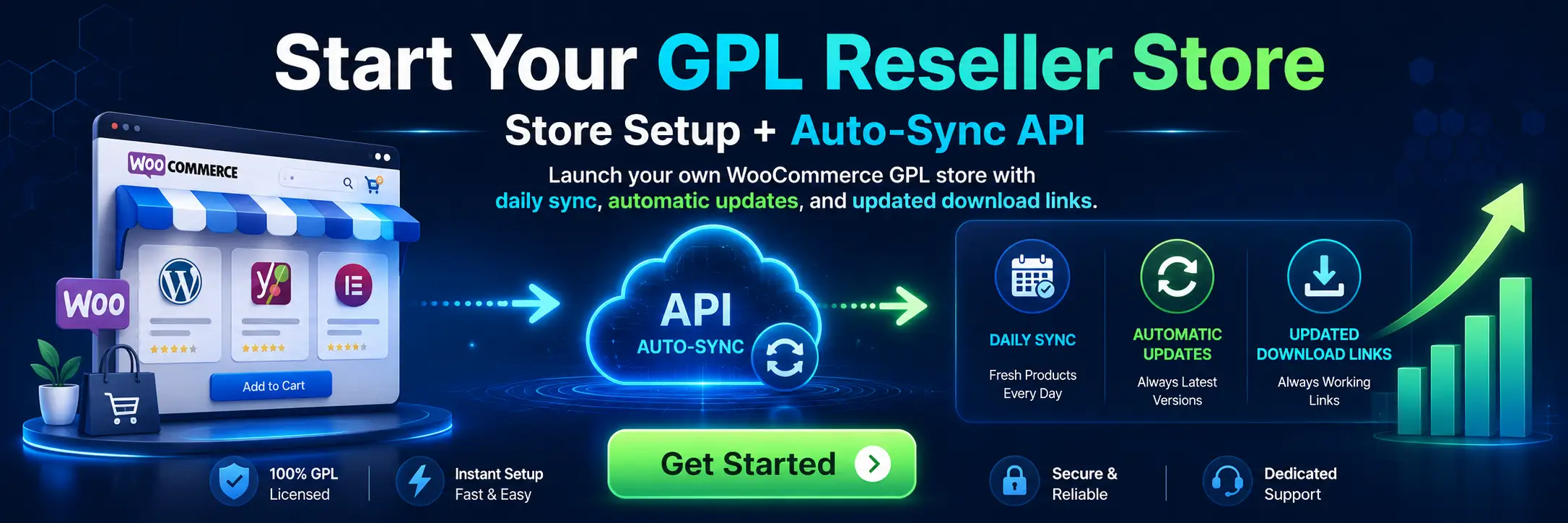
Accordion Slider PRO – Responsive WordPress Plugin is a multimedia showcase tool for arranging images and video items in an expandable accordion layout. Rather than displaying every slide at the same width, the interface gives each item a narrow preview and expands the selected panel to reveal more visual content. This creates a distinctive way to present portfolios, product collections, project categories, team highlights, travel destinations, editorial features, and mixed-media galleries.
The plugin supports images, YouTube videos, and Vimeo videos, with larger media opening in a lightbox. It also includes responsive full-width or centred layouts, horizontal and vertical orientations, image links, a smooth zoom effect, social sharing for lightbox images, deep linking, per-image titles and descriptions, multiple instances, and adjustable dimensions. These features make it more specialised than a conventional slideshow that shows one equal-sized frame after another.
Create A Visual Accordion Showcase
An accordion slider lets visitors compare several items at a glance while focusing on one panel at a time. The narrow items establish the range of content, and the expanded panel becomes the current point of attention. This can work well when the relationship between items matters, such as a set of portfolio categories, a product family, a before-and-after sequence, or several services represented by strong photography.
The format is most effective when every panel has a clear visual purpose. Use consistent image quality and avoid filling the accordion with unrelated assets simply to occupy space. A smaller, carefully selected group often communicates more than a large collection that forces visitors to explore without context.
Display Images, YouTube Videos, And Vimeo Videos
Multimedia support allows one accordion to combine still images with YouTube and Vimeo content. An image can lead to a larger photograph, while another panel can open a product demonstration, interview, trailer, or case-study video. This is useful for creative agencies, property sites, events, educators, artists, and businesses that need to present more than one media format in the same visual component.
Video availability still depends on the external host, the video’s privacy settings, and the visitor’s ability to reach that platform. Confirm that every YouTube or Vimeo URL is public or correctly embeddable. Provide a clear thumbnail and description so the visitor understands what will open before activating the panel.
Open Media In A Focused Lightbox
Lightbox support displays a larger image or video over the current page, allowing the visitor to focus on the selected item without navigating away. This is particularly useful when the accordion itself needs to stay compact but the underlying media deserves more viewing space. The original page remains behind the overlay, making it easy to close the lightbox and continue browsing the collection.
Test the close button, background click, keyboard behaviour, video playback, and scrolling on mobile. A lightbox should never trap the visitor or hide essential controls. If a page already uses another gallery or popup plugin, check for overlapping styles and scripts because two lightbox systems can compete for the same media links.
Choose Horizontal Or Vertical Orientation
Accordion Slider PRO can display items horizontally or vertically. A horizontal accordion is a natural choice for wide hero areas, portfolio sections, and full-width image strips. A vertical accordion can fit a narrower content column or a layout where titles need more space along one edge.
Choose orientation according to the media and page structure. Portrait photography may fit a vertical design, while landscape images usually benefit from a wider horizontal expansion. Preview the same content on phones and tablets, since an orientation that looks elegant on desktop may need different dimensions or fewer items on a compact screen.
Use Full-Width Or Centred Layouts
The responsive layout can be configured for full-width presentation or a centred accordion. Full width creates a strong visual section that reaches across the available container and can work well near the top of a landing page. A centred layout leaves controlled space around the component and may integrate more naturally inside an article, service page, or portfolio.
Do not make the accordion taller than the value of its content. Large media can dominate a page and push essential text or calls to action below the fold. Balance the component with a descriptive heading, a short introduction, and a logical next step such as viewing a project, requesting a quote, or opening a detailed product page.
Add Links To Individual Images
Each image can have a link with a target option for opening in the same window or a new window. This allows a panel to connect to a project page, product detail, booking destination, campaign, or another relevant resource. The visible image and its title should accurately represent the destination so visitors are not surprised after clicking.
Use a new window only when it genuinely helps the user, such as opening an external resource that should not replace the current page. For normal internal navigation, the same window is often simpler. Always check the final link, protocol, and target setting after duplicating or reordering slider items.
Apply A Smooth Zoom Effect
The plugin includes a smooth zoom effect for images, activated by mouse interaction or touch on supported mobile devices. Speed and easing parameters can be adjusted to change how the motion feels. A restrained zoom can draw attention to the active panel and add depth without requiring a complex animation sequence.
Motion should remain comfortable. Excessive speed, scale, or repeated movement can distract from the image and may affect visitors who are sensitive to animation. Keep the effect subtle, verify that text stays readable, and consider whether a static presentation would be more appropriate for an information-heavy or accessibility-focused page.
Share Large Images From The Lightbox
The documented feature set includes social sharing for a large image opened in the lightbox, with Facebook, Twitter, and Pinterest named by the developer. This can help visitors distribute a portfolio image, product photograph, poster, infographic, or other visual asset. The shared destination should lead to a useful page, not only an isolated file with no context.
Social platforms change their sharing endpoints and naming over time, so test each option in the installed plugin version. Prepare appropriate page metadata and image information independently of the slider. A share button can open the platform’s interface, but the quality of the resulting preview also depends on the page’s social metadata and the platform’s cache.
Use Deep Links To Open A Specific Item
Deep linking provides a URL that targets a particular accordion item and can open its lightbox automatically. This is valuable when a campaign, email, article, or client message needs to point directly to one photograph or video instead of the beginning of the collection. It can also make large portfolios easier to reference.
After creating a deep link, test it in a private browser window and on a mobile device. Confirm that the correct item opens, the page can still be navigated normally, and caching or URL-cleaning plugins do not remove the required fragment or parameter.
Add Image Titles And Descriptions
Per-image titles and descriptions help explain what each panel contains. The developer notes that descriptions can be indexed by search engines, but meaningful text should also be included in the surrounding page. A multimedia interface alone may not provide enough context for visitors, assistive technology, or search crawlers to understand the broader topic.
Write a unique description that identifies the project, product, location, person, or result shown in the image. Avoid repeating the same keyword under every panel. Descriptive filenames, suitable alternative text, visible captions where appropriate, and supporting HTML content create a stronger information structure than relying on one field.
Insert Multiple Accordions On One Website
Multiple-instance support allows more than one accordion across the site or even on the same page. An agency could create separate sections for branding, web design, and photography. A retailer could organise collections by season, while an event site could separate speakers, sessions, and venue images.
Use multiple instances with moderation. Several large media accordions on one page can increase loading time and make the interaction pattern repetitive. Load only the assets required for the current page, optimise every image, and consider dividing unrelated galleries into separate destinations.
Responsive And Mobile-Friendly Presentation
The accordion adapts to device width, screen size, and orientation, and the product information identifies compatibility with iOS and Android. Responsive behaviour is important because the available width directly affects how much of each closed item remains visible and how large the active panel can become.
Test tap behaviour, text size, lightbox controls, video playback, and image cropping on real devices. A desktop hover effect may become a touch interaction on mobile, so instructions should not assume a mouse. Ensure that users can still identify each item and reach the next panel without precise gestures.
Performance And Media Optimisation
Image and video showcases can become heavy when every panel loads a high-resolution asset. Resize photographs to the maximum display dimensions, compress them appropriately, and use efficient formats supported by the site. Avoid using a multi-megabyte original when the accordion shows a much smaller preview.
YouTube and Vimeo embeds can add external requests and privacy considerations. Review consent requirements for the site’s audience, test lazy-loading behaviour, and make sure a delayed script does not prevent the lightbox from opening. Clear caches after changing the playlist or plugin files.
Compatibility And Current Version Notes
The original marketplace listing currently shows version 1.3, released on November 30, 2025, and lists compatibility with WordPress versions through 6.8 as well as Elementor. The exact package available on this product page should be checked after download because the title shown by GPL Care does not state a version number. Confirm the installed version inside WordPress before relying on a particular update or compatibility claim.
Use a staging site for updates, especially when the page already includes Elementor, other slider plugins, lightboxes, minification, or custom JavaScript. Check the browser console and test all media types. A gallery may appear visually correct even when a deep link, share button, or video popup has stopped working.
Recommended Setup Workflow
- Back up the site and test the plugin in a staging environment.
- Install and activate the Accordion Slider PRO package.
- Prepare optimised images and verified YouTube or Vimeo URLs.
- Create the accordion and choose horizontal or vertical orientation.
- Select full-width or centred presentation and configure dimensions.
- Add unique titles, descriptions, links, and target behaviour for each item.
- Configure the zoom speed, easing, lightbox, sharing, and deep-link options.
- Insert the accordion in the intended page and preview multiple screen sizes.
- Test every image, video, link, share option, and deep URL while logged out.
- Review performance, accessibility, privacy, and caching before publishing.
GPL Download And Support Notes
This product is supplied as a downloadable package under the GPL information displayed on GPL Care. The distributed files do not automatically include an original Envato purchase code, LambertGroup account, direct developer support, or account-based update services. Refer to the GPL Care product terms and use the update method available from the download provider.
To compare other presentation tools, browse the WordPress Sliders Plugins Collection. For plugins related to documents, media organisation, and viewing experiences, explore the WordPress Media Plugins Collection. Choose the component that matches the content type and test it with the active theme before production use.
Frequently Asked Questions
Which Media Types Can The Accordion Display?
The documented multimedia support covers images, YouTube videos, and Vimeo videos. Larger media can open in a lightbox window.
Can I Use A Horizontal Or Vertical Accordion?
Yes. The developer demonstrates both horizontal and vertical versions, with full-width and centred presentation options.
Can Each Image Link To Another Page?
Yes. Individual image links can use a target setting for the same window or a new window. Check every destination after setup.
What Is Deep Linking?
Deep linking creates a URL that points to a specific accordion image and can open that item in the lightbox automatically.
Can I Add More Than One Accordion?
Multiple instances are supported, including more than one accordion on the website or the same page. Consider performance when loading many media items.
Does The Plugin Guarantee Better SEO?
No. Titles and descriptions add context, but rankings depend on overall content quality, technical SEO, performance, links, accessibility, and many other factors.
Does The GPL Download Include Developer Support?
Direct author support, original marketplace purchase codes, and account services are usually separate from redistributed GPL files.
Present Images And Videos In A Distinctive Layout
Accordion Slider PRO – Responsive WordPress Plugin offers a visually different alternative to a standard slideshow. Its responsive accordion panels, horizontal and vertical orientations, image and video support, lightbox, zoom effect, social sharing, deep links, per-item descriptions, individual links, and multiple-instance capability can support portfolios, campaigns, product showcases, and editorial collections. Careful media selection, useful descriptions, restrained motion, and thorough mobile testing will produce a cleaner and more engaging result.
GPLCARE Updater Plugin
GPLCARE Updater Plugin Tutorial
New to GPLCARE? Watch this step-by-step tutorial to learn how to install, activate, and use the GPLCARE Updater Plugin directly from your WordPress dashboard.

Easy Installation Guide
Install the GPLCARE Updater Plugin in a few steps.

Update Management
Update themes and plugins directly from WordPress.

Tips & Best Practices
Keep your website updated and secure.
Support and updates
What is included?
Documentation You will find the item’s documentation within the .zip file you download.
Updates Available
You'll always have access to the latest features, fixes, and security updates. Simply re-download the item to get the most up-to-date files. You can find the updates change-log on the item’s description.
What is not included?
Author Support
Author support is not available for items downloaded on GPLCare. If you need support from this item’s author, we recommend you take a look at this item on Original Author. If support is offered, you will receive 6 months of support when you purchase the item there.
Technical support from GPLCare
GPLCare doesn’t offer technical support for individual items. If you need further assistance, please visit our Help center and create Support Tickets here.
Automatic updates All updates require manual installation.
Only logged in customers who have purchased this product may leave a review.
Related products
-90%
Original price was: $29.00.$2.99Current price is: $2.99.
-90%
Original price was: $29.00.$2.99Current price is: $2.99.
-90%
Original price was: $29.00.$2.99Current price is: $2.99.
-90%
Original price was: $29.00.$2.99Current price is: $2.99.
Reviews
Clear filtersThere are no reviews yet.