
-90%
License: GPL | Developer: Codecanyon
This is The Exact Same File as Distributed by The Developer (Click Here)
AD Gallery – Premium WordPress Plugin
Original price was: $29.00.$2.99Current price is: $2.99.
266
Items sold in last 4 weeks
33
People watching this product now!
Description

AD Gallery – Premium WordPress Plugin
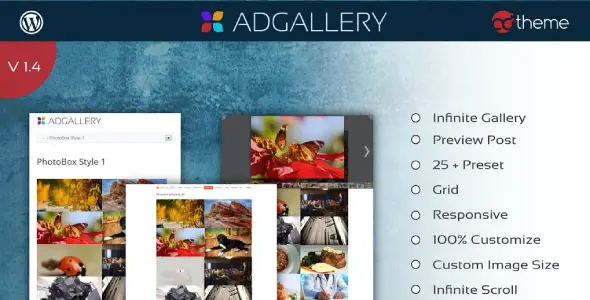
AD Gallery – Premium WordPress Plugin is a flexible image-gallery tool that provides five distinct presentation types: PrettyPhoto, PhotoBox, SGallery, PhotoWall, and a filterable gallery with post preview or lightbox behaviour. It can create traditional photo displays, masonry grids, filtered portfolios, albums, and continuously loading collections without forcing every website into one visual pattern.
The plugin also includes more than twenty-five presets, responsive layouts, infinite scroll, widget and shortcode support, custom image sizes, colours, wrappers, overlays, border radius, and custom CSS. Gallery images can be sourced from custom post types, WordPress categories, WooCommerce categories, older eCommerce category systems, albums, featured images, or images found in content. This range makes AD Gallery suitable for portfolios, product collections, news archives, photography, events, and content-driven showcase pages.
Choose From Five Gallery Types
Different image collections need different viewing experiences. A compact portfolio may work best as a filterable masonry grid, while an editorial photo series may benefit from a focused lightbox. AD Gallery’s five modes provide several approaches within one plugin so administrators can match the layout to the purpose of the content.
- PrettyPhoto: Opens gallery media in an overlay for focused viewing without leaving the current page.
- PhotoBox: Presents images through a photo-oriented lightbox experience.
- SGallery: Provides another structured gallery style for browsing a selected image collection.
- PhotoWall: Builds a more visual wall of images where the overall collection is part of the design.
- Filter Gallery: Lets visitors narrow items and can connect the result with a post preview or lightbox display.
Keep the interaction consistent within one page. Mixing several gallery engines in the same section may produce different controls, transitions, and close behaviour. Select the mode that fits the main visitor task and use it deliberately.
Create Filterable Portfolio And Category Galleries
A filterable gallery is helpful when the collection contains recognisable groups. An agency can separate branding, web, and photography projects. A property business can filter residential and commercial listings. A shop can organise visual products by category, while an event archive can separate years or locations.
Filters should use short, clear labels and contain enough items to justify their existence. Too many categories can become harder to use than a normal archive page. Test the default state, the empty state, and the transition between filters. The active filter should remain visible so visitors understand why certain items are shown.
Build Masonry Grid Layouts
The grid masonry option arranges images with varying heights while reducing unnecessary gaps. This is useful for photography and editorial collections where forcing every image into one crop would remove important details. A masonry layout creates a natural visual rhythm and can accommodate portrait, landscape, and square assets in the same gallery.
Prepare images carefully even when their proportions differ. Very tall or extremely wide files can dominate the grid and make other items difficult to scan. Use a sensible range of aspect ratios, create optimised thumbnails, and check the layout at several responsive breakpoints.
Use Infinite Scroll For Larger Collections
Infinite scroll and the infinite gallery option can reveal more items as the visitor continues through a collection. This reduces the need to click through conventional pagination and works well for visual browsing where the user is exploring rather than looking for a specific page number.
Large galleries still need performance limits. Do not load full-resolution images for every thumbnail, and avoid adding hundreds of items without testing memory use, network requests, and mobile behaviour. Important footer content can also become difficult to reach when new images load continuously. A clear end state or alternative navigation may be necessary for accessibility and predictable browsing.
Start With More Than Twenty-Five Presets
More than twenty-five presets give administrators ready-made combinations of layout and styling. A preset can shorten setup time and provide a stable base before custom colours, overlays, borders, and dimensions are adjusted. This is useful when several galleries need a consistent appearance across a website.
Choose one or two presets that match the brand rather than using a different design on every page. Consistent hover effects, captions, spacing, and lightbox controls make the site feel intentional. After selecting a preset, preview real images and real titles because placeholder content does not reveal wrapping, contrast, or cropping problems.
Source Images From WordPress Content
AD Gallery can build collections from several WordPress content sources. Custom post types allow a portfolio, project, property, or other structured item to supply gallery content. Standard WordPress categories can power an editorial or blog-based collection. Albums provide a direct way to group photographs, while featured images and content-body images can reuse media already attached to posts.
Using existing content reduces duplicate entry, but it also means that editorial consistency matters. Check that every selected post has an appropriate featured image, a useful title, and a valid public URL. If the gallery reads images from the content body, confirm which image should act as the preview and avoid loading decorative assets that do not represent the post.
Build Galleries From WooCommerce Categories
WooCommerce category support allows product-related image collections to be created from an existing store structure. This can be useful for a visual category overview, seasonal collection, brand showcase, or landing page that directs shoppers toward selected product groups. Gallery items should lead to clear product or category destinations when navigation is part of the design.
A gallery is not a replacement for WooCommerce’s complete product archive when visitors need price, stock, variations, sorting, and purchase controls. Use it as a visual entry point and keep important commerce information available on the destination pages. Test product image changes and category assignments to ensure the gallery remains current.
Use Albums For Curated Photo Sets
Album support is useful when images belong together but are not tied to a normal post category. A photographer can create a wedding or travel album, an organisation can collect event images, and an agency can group the stages of a completed project. Curated albums give the administrator direct control over which images appear together.
Give each album a meaningful name and add page text explaining the collection. A gallery of attractive images may be visually strong but still lack context for search engines, assistive technology, and visitors unfamiliar with the subject.
Customize Image Size, Colour, And Overlay
Custom image-size settings help balance visual quality with performance. Thumbnail dimensions influence the density of the grid and the amount of cropping, while the larger lightbox image determines how much detail a visitor can inspect. Generate appropriately sized files instead of serving an original image far larger than the display area.
Colour, wrapper, overlay, border-radius, and custom CSS controls allow the gallery to match the active theme. Overlays can display a title, icon, or visual cue on hover, but they should not hide essential content or depend entirely on mouse interaction. Confirm how the same information appears on touch devices where hover does not exist in the traditional sense.
Place Galleries With Shortcodes And Widgets
Shortcodes allow a configured gallery to be inserted into posts, pages, classic editor content, and compatible builder areas. Widget support makes it possible to show a smaller gallery in theme locations such as a sidebar or footer. These placement options can help reuse a gallery without editing template files.
Record where shortcodes and widgets are used. If the plugin is replaced or deactivated, a shortcode may remain visible as plain text or stop rendering, and a widget area can disappear after a theme change. A simple inventory makes future maintenance easier.
Responsive Gallery Design
The gallery layouts are designed to respond to different screen sizes, but the final result depends on image proportions, captions, active theme styles, and the number of columns. Test phones, tablets, laptops, and large displays. Look for horizontal overflow, tiny controls, cropped faces, and text that covers too much of an image.
Touch targets in filters and lightboxes should be easy to use, and the close control must remain visible. Avoid relying only on hover effects for essential links. If the desktop gallery shows several columns, reduce the count gradually so mobile thumbnails remain large enough to understand.
Translation And Multilingual Use
The package includes PO and MO translation files, making interface text available for localisation. Translating labels helps when the gallery contains filters, navigation, loading messages, or other visible controls. Content titles and captions should also be translated through the site’s normal multilingual workflow.
After translation, test longer strings inside filter buttons and lightbox controls. A label that fits in English may wrap or overlap in another language. Also check right-to-left layouts if the website supports them, since grid order and navigation icons may need additional adjustments.
Performance And Accessibility Guidance
Optimise thumbnails and large images, use meaningful alternative text, and avoid uploading duplicate files at excessive dimensions. Lazy loading can help, but verify that it works correctly with infinite scroll and the selected lightbox. A gallery should not delay the page’s essential text or cause large layout shifts while images appear.
Keyboard users should be able to reach filters and image links, see a focus indicator, open the selected item, and close the lightbox. Captions should be available as text rather than embedded into the image. If a particular gallery engine does not meet the accessibility needs of the project, choose another mode or a different solution.
Compatibility And Legacy Component Considerations
The original product changelog shows version 1.4 from June 2015, while current marketplace metadata lists WordPress compatibility through 6.2. The gallery modes also rely on third-party front-end libraries such as PrettyPhoto, PhotoBox, SGallery, MixItUp, and PhotoWall. Because the plugin and some of its components have a long history, compatibility and security should be tested carefully in the exact environment where the package will run.
Use a staging site, check the installed version, review browser and PHP errors, and test the chosen gallery mode with current WordPress, PHP, theme, jQuery, caching, and security settings. Do not assume that one working preset proves that every gallery engine, infinite-scroll mode, and lightbox is compatible.
Recommended Setup Workflow
- Create a current backup and prepare a staging copy of the website.
- Install and activate the AD Gallery package.
- Select the correct image source, such as an album, category, custom post type, or WooCommerce category.
- Choose one of the five gallery types and an appropriate preset.
- Configure image sizes, columns, colours, overlays, borders, wrappers, and filters.
- Insert the gallery with the available shortcode or widget method.
- Test filter states, infinite loading, image links, captions, and lightbox controls.
- Review performance and responsive behaviour with a representative number of images.
- Check keyboard operation, focus visibility, alternative text, and translated labels.
- Clear caches and verify the live page while logged out.
GPL Download And Support Notes
This product is offered as a downloadable package under the GPL information displayed on GPL Care. The package provides the distributed WordPress plugin files. It does not automatically include an original Envato purchase code, an ad-theme account, direct developer support, or marketplace-based update access. Follow the download provider’s update process and back up the site before replacing files.
For other portfolio and image-grid solutions, browse the WordPress Galleries Plugins Collection. You can also explore the WordPress Media Plugins Collection for tools related to documents, media organisation, and viewing experiences.
Frequently Asked Questions
How Many Gallery Types Are Included?
AD Gallery includes five documented types: PrettyPhoto, PhotoBox, SGallery, PhotoWall, and a filter gallery with post preview or lightbox behaviour.
Can I Create A Masonry Gallery?
Yes. Grid masonry layout is included for arranging images with different heights while reducing gaps in the visual grid.
Can The Gallery Use WooCommerce Categories?
WooCommerce categories are listed as an image source. Use the gallery as a visual entry point and keep full product information on the store pages.
Does It Support Infinite Scroll?
Infinite scroll and an infinite gallery option are included. Optimise images and test large collections carefully on mobile devices.
Can I Customize Colours And Overlays?
Yes. The documented controls include custom colours, wrappers, overlays, border radius, image sizes, and custom CSS.
Can I Insert A Gallery With A Shortcode?
Shortcodes and widget support are included, allowing galleries to be placed in content and compatible theme areas.
Should I Test This Plugin On A Staging Site?
Yes. The plugin uses several long-established gallery libraries and has an older changelog, so current compatibility, performance, and security should be verified before production use.
Create Flexible Image Collections In WordPress
AD Gallery – Premium WordPress Plugin offers a broad toolkit for building photo displays from WordPress content, albums, categories, custom post types, and eCommerce sources. Its five gallery modes, masonry layout, filtering, infinite scroll, presets, responsive design, widgets, shortcodes, image sizing, colours, overlays, and custom CSS can support many visual projects. The best implementation combines a focused gallery type with optimised media, descriptive content, accessible controls, and thorough compatibility testing.
GPLCARE Updater Plugin
GPLCARE Updater Plugin Tutorial
New to GPLCARE? Watch this step-by-step tutorial to learn how to install, activate, and use the GPLCARE Updater Plugin directly from your WordPress dashboard.

Easy Installation Guide
Install the GPLCARE Updater Plugin in a few steps.

Update Management
Update themes and plugins directly from WordPress.

Tips & Best Practices
Keep your website updated and secure.
Support and updates
What is included?
Documentation You will find the item’s documentation within the .zip file you download.
Updates Available
You'll always have access to the latest features, fixes, and security updates. Simply re-download the item to get the most up-to-date files. You can find the updates change-log on the item’s description.
What is not included?
Author Support
Author support is not available for items downloaded on GPLCare. If you need support from this item’s author, we recommend you take a look at this item on Original Author. If support is offered, you will receive 6 months of support when you purchase the item there.
Technical support from GPLCare
GPLCare doesn’t offer technical support for individual items. If you need further assistance, please visit our Help center and create Support Tickets here.
Automatic updates All updates require manual installation.
Only logged in customers who have purchased this product may leave a review.
Related products

-90%
Original price was: $39.00.$3.99Current price is: $3.99.

-96%
Original price was: $79.00.$2.99Current price is: $2.99.

-90%
Original price was: $29.00.$2.99Current price is: $2.99.

-90%
Original price was: $29.00.$2.99Current price is: $2.99.
Reviews
Clear filtersThere are no reviews yet.