-90%
License: GPL | Developer: Codecanyon
This is The Exact Same File as Distributed by The Developer (Click Here)
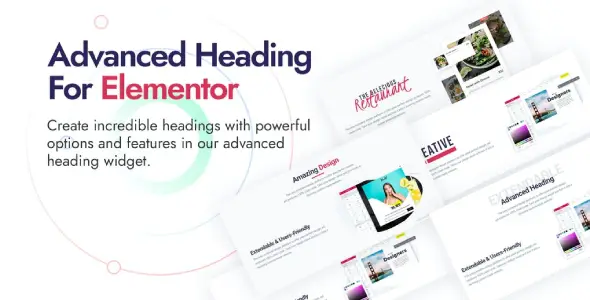
Advanced Heading and Animated Text for Elementor
Original price was: $29.00.$2.99Current price is: $2.99.
208
Items sold in last 4 weeks
50
People watching this product now!
Description
Advanced Heading And Animated Text For Elementor Overview
Advanced Heading And Animated Text For Elementor is a focused design extension for people who want more expressive headings inside the Elementor page builder. Instead of building every decorative title from several text widgets, custom CSS snippets, and separate animation scripts, this plugin adds two purpose-built widgets to the Elementor editing experience: Advanced Heading and Animated Heading. Together, they help you produce distinctive section introductions, promotional statements, hero headlines, service titles, and other text-led design elements without leaving Elementor.
A heading is often the first element that explains what a section contains, but it also carries much of a page’s visual personality. A standard heading widget is excellent for straightforward titles. This add-on is useful when the design calls for layered typography, a highlighted word, a background treatment, a border, a gradient, or movement that attracts attention to a changing phrase. Its controls are presented in the familiar Elementor interface, so designers can adjust content and appearance while seeing the result on the canvas.
The package is especially relevant to landing pages, agency sites, creative portfolios, product introductions, event pages, online service pages, and other layouts where typography is a primary design element. It does not replace Elementor or a complete widget collection. It adds a small, specialist toolkit for advanced and animated headings, making it easier to keep a site lean when these are the particular effects a project needs.
Two Purpose-Built Elementor Widgets
The official product listing identifies two included widgets. Each addresses a different heading requirement and can be used independently. This clear separation makes the editor easier to understand: choose the Advanced Heading widget for a richly styled static title, or use the Animated Heading widget when one part of the message should change or move.
Advanced Heading Widget
The Advanced Heading widget is designed for attractive section titles that go beyond a single line of plain text. It gives a designer a visual control set for typography, colours, borders, backgrounds, gradients, positioning, and other presentation details. These options can be combined to create anything from a restrained editorial heading to a high-contrast promotional title.
For example, a service section can use a small supporting phrase above a bold main title, while a product landing page can use a gradient or outlined treatment to establish a stronger visual hierarchy. A subtle background word can create depth behind the readable foreground title when the chosen layout calls for that style. Because the result remains part of the Elementor layout, the heading can be aligned with surrounding columns, images, buttons, and spacing controls instead of being prepared as a separate graphic.
Animated Heading Widget
The Animated Heading widget introduces motion into headline text. It can be used when a fixed part of a sentence needs to lead into one or more attention-grabbing words or phrases. This is valuable in compact hero areas where a business wants to communicate several capabilities without stacking several large headings. A studio might introduce design, development, and marketing services within one controlled headline area, while a portfolio might rotate through different professional roles.
Animation should support the message instead of competing with it. The plugin’s animation controls make it possible to tune the presentation, but the copy still needs to remain concise. Short animated terms generally scan more comfortably, reduce layout movement, and are easier to fit across desktop and mobile breakpoints. The plugin is a design tool; thoughtful pacing, contrast, and wording are what turn the effect into a useful communication element.
Flexible Styling Without A Custom Heading Graphic
One important advantage of an Elementor heading widget is that the words stay editable. Text baked into an image is harder to update, cannot respond as naturally to different screen widths, and may be less accessible to visitors or search engines. With this plugin, the heading is created within the page builder, while the visual design is controlled separately through style settings.
The official feature set includes customisable fonts, colours, borders, backgrounds, gradients, and positions. That combination supports many practical design directions. Typography can be matched to the site’s brand system, colour can distinguish the important part of a phrase, borders can add emphasis, and a restrained gradient can create depth without requiring image-editing software. Position controls help place decorative and readable elements into the intended composition.
These options are also useful when a design must be reused. Once a successful title style has been created, Elementor’s duplication and template workflows can help carry that appearance to other sections. Copy can then be changed for the new context while the visual rules remain consistent. This is usually faster and less error-prone than recreating custom CSS for every page.
Responsive Heading Design For Different Screens
Large display typography can look impressive on a wide monitor and still become awkward on a phone. The plugin includes responsive settings, allowing the heading presentation to be adjusted for the screen sizes supported by the Elementor layout. Font size, spacing, alignment, and positioning should be reviewed at each breakpoint rather than assuming that one desktop setting will scale perfectly everywhere.
Mobile testing is especially important for animated text. A changing word that is much longer than the first word may wrap onto another line and cause visible movement around the heading. Choose phrases of reasonably similar length, use a mobile-appropriate type size, and leave enough room in the container. If motion makes a small-screen layout difficult to read, a simpler treatment may deliver a better result.
The most reliable workflow is to build the desktop composition, review tablet behaviour, and then refine the mobile view. Check both the first animated phrase and the longest phrase rather than testing only the initial state. Also test the page in a real browser after publishing, because the editor preview and the front end can have different available widths when navigation, sidebars, or browser controls are present.
Practical Uses For Advanced And Animated Headings
This add-on can support many types of Elementor pages without forcing every heading to use an effect. A selective approach usually produces the strongest design. Useful applications include:
- Hero Messages: Combine a clear value proposition with one changing phrase that highlights services, audiences, or outcomes.
- Service Sections: Give major service categories a recognisable title style while maintaining visual consistency across the page.
- Portfolio Introductions: Present roles, disciplines, or creative specialties in a compact animated headline.
- Campaign Landing Pages: Highlight an offer, deadline, launch theme, or central benefit without creating a separate heading image.
- About Pages: Add visual emphasis to a mission statement or a short phrase that expresses the brand’s point of view.
- Event Pages: Distinguish speaker sections, schedules, topics, or key announcements with a more intentional typographic treatment.
- Product Presentations: Introduce feature groups with clear, styled section headings that guide visitors through a longer page.
For supporting navigation elements on an Elementor project, you may also explore the Accordion Footer Menu Widget For Elementor. Visitors comparing broader website-building tools can browse the WordPress Plugins Collection. These internal resources serve different layout needs and can help keep the overall build organised.
A Sensible Design Workflow
Start with the message rather than the animation. Write one clear heading that explains the section, then decide whether the advanced or animated widget genuinely improves the communication. A static Advanced Heading is often the better choice for informational sections, while an Animated Heading can work well for a single focal point near the top of a landing page.
Next, establish hierarchy. Decide which words carry the main meaning, which phrase is supporting context, and whether any decorative background text is necessary. The readable foreground heading should always remain dominant. A background word should have enough tonal separation to avoid reducing readability, and it should never make the main text difficult to identify.
After structure comes styling. Match the typeface to the site’s existing design system, choose colours that meet appropriate contrast expectations, and use borders or gradients only when they reinforce the intended emphasis. A page containing several unrelated effects can look less professional than a page with one repeated, well-tuned heading style. Elementor’s reusable templates can help preserve that consistency.
Finally, test the complete interaction. Review the heading next to the image, button, form, or paragraph that follows it. Confirm that animation does not delay comprehension, check different viewport sizes, and verify that translated or dynamically changed text still fits. This final context check is more valuable than judging the widget in isolation.
SEO, Semantics, And Readability Considerations
Visual styling alone does not create an SEO-friendly page. The heading still needs to describe the content naturally and fit into a logical document structure. Use the page’s primary heading once for the main topic, then use lower-level headings to divide major sections. Avoid choosing a heading level only because it looks larger; visual size can be controlled through typography settings, while the semantic level should reflect the page hierarchy.
Animated words also deserve careful planning. Search engines and assistive technologies should be able to understand the central message even if an effect does not run. Keep the fixed portion meaningful, avoid relying on motion as the only way to communicate critical information, and check the rendered markup on the public page. The plugin can present the text, but the site owner remains responsible for accurate copy, meaningful hierarchy, and accessible contrast.
For visitors, readability improves when headings are brief, specific, and visually separated from body copy. Decorative effects should not reduce letter clarity or create excessive movement. People who prefer reduced motion may be uncomfortable with prominent animation, so consider the audience, the animation frequency, and the option of using a static style where appropriate. A polished design balances attention with comfort.
Performance And Page-Building Discipline
The developer describes the plugin as lightweight and fast, but real page speed always depends on the complete website: theme, Elementor setup, installed add-ons, fonts, images, scripts, caching, and hosting all contribute. A focused two-widget extension can be a practical alternative to installing a large widget bundle when only advanced headings and animated text are required.
Performance still benefits from restraint. Use animation at a few high-value points rather than applying it to every section. Limit unnecessary font families and weights, optimise background assets, and avoid stacking several animated components in the same viewport. After publishing, test a representative page with the site’s normal optimisation and cache configuration enabled.
Because Elementor extensions depend on the page builder, keep WordPress, Elementor, the theme, and the add-on under a controlled update process. Create a backup and test changes on a staging site, particularly when an Elementor release changes widget rendering or editor behaviour. The product changelog has included Elementor compatibility fixes, which is a useful reminder that page-builder integrations should be tested together.
Requirements And Compatibility
Elementor is required because this product supplies widgets for the Elementor interface; it is not a standalone page builder. The official listing specifies Elementor 2.5 or higher, PHP 5.6 or higher, and MySQL 5 or higher as historical minimum requirements. Those older versions should not be treated as a recommendation for a new production site. For security and compatibility, use currently supported versions of WordPress, PHP, the database server, Elementor, and the active theme whenever the rest of the stack permits.
The developer states that the widgets work with WordPress themes built for Elementor and support major browsers including Chrome, Firefox, Safari, Opera, and Edge. Theme CSS can still influence fonts, line heights, and spacing, so the result should be checked with the specific theme and any global Elementor styles used by the site. Browser testing is particularly worthwhile for gradients, text effects, and animated positioning.
A translation template is included according to the official feature list. This can help localise interface strings, but translated heading content itself must be entered and reviewed as part of the page’s language workflow. Longer translations often require new responsive adjustments, so preview every language rather than copying the same fixed dimensions.
Installation And First Setup
- Download the plugin ZIP file and keep an untouched backup copy in a secure location.
- In the WordPress dashboard, open Plugins, choose Add New, and select Upload Plugin.
- Select the ZIP package, install it, and activate the plugin after confirming that Elementor is already active.
- Edit a page with Elementor and search the widget panel for the included advanced or animated heading widget.
- Drag the required widget into the layout, enter the heading content, and configure the style settings.
- Preview desktop, tablet, and mobile layouts before updating the page.
- Clear page, asset, and CDN caches if the published design initially shows older CSS or JavaScript.
If a widget does not appear, first confirm that the plugin and Elementor are both active. Then check for JavaScript errors, optimisation settings that delay editor assets, and conflicts with other Elementor extensions. Testing on a staging copy with nonessential add-ons temporarily disabled is a safer diagnostic process than making broad changes on a live sales page.
Who Should Use This Elementor Add-On?
Advanced Heading And Animated Text For Elementor suits designers, freelancers, agencies, marketers, and site owners who already work with Elementor and need a more distinctive heading system. It is particularly useful when the project wants visual typography controls but does not need dozens of unrelated widgets. The two-widget scope keeps its purpose easy to understand.
It may be less suitable for sites that do not use Elementor, projects that require headings built exclusively with native WordPress blocks, or interfaces where all motion is intentionally disabled. It is also unnecessary when a theme’s existing heading component already provides every required treatment. Choosing the smallest tool that meets the design brief usually makes long-term maintenance easier.
GPL Download And Support Information
This GPLCARE listing provides a downloadable GPL-distributed package for installation on a compatible WordPress website. GPL distribution concerns the software package and its freedoms; it does not automatically include the original developer’s marketplace account, purchase code, hosted services, licence-key activation, or direct premium support. Features that depend on an external account or vendor-controlled service may require separate access from the original developer.
Before using the package on a production website, scan the archive, verify the supplied version, review its changelog, and test it on staging. Keep a complete backup before replacing an existing release. If the plugin has not been tested with the site’s current Elementor and WordPress versions, check the editor, the public page, responsive styling, and animations carefully before deployment.
Frequently Asked Questions
Does This Plugin Replace Elementor?
No. Elementor is required. The plugin extends the Elementor editor with specialised heading widgets rather than providing a separate page builder.
How Many Widgets Are Included?
The official product information lists two widgets: Advanced Heading and Animated Heading. The first focuses on richly styled static titles, while the second adds animated text to a headline.
Can The Headings Be Styled Responsively?
Yes. Responsive settings are included, but the site designer should still preview each breakpoint and test the longest animated phrase on a real mobile width.
Can It Work With Any Elementor Theme?
The developer states that it works with themes built on Elementor. Because theme and global styles can affect typography and spacing, compatibility should be verified with the site’s exact theme, Elementor version, and other active add-ons.
Is Animated Text Automatically Good For SEO?
No animation guarantees an SEO benefit. Use descriptive copy, a logical heading hierarchy, readable contrast, and a meaningful static portion of the message. Animation should improve presentation without hiding or confusing the topic.
Will A GPL Download Include Developer Support?
GPL redistribution does not normally include the original seller’s account services, marketplace purchase code, or direct developer support. Check the GPLCARE package details and purchase the original licence separately if those vendor services are required.
Final Thoughts
Advanced Heading And Animated Text For Elementor is a compact typography add-on built around two practical jobs: creating more expressive static section headings and adding controlled motion to selected headline text. Its Elementor-based controls for fonts, colours, borders, backgrounds, gradients, positions, and responsive behaviour give designers room to create a recognisable visual system without converting important text into images.
The best results come from selective use. Begin with clear copy, preserve semantic heading order, design for the smallest screen, and treat movement as emphasis rather than decoration for its own sake. With those principles in place, the plugin can add personality to landing pages, portfolios, service sites, campaigns, and other Elementor layouts while keeping the content editable and the workflow familiar.
GPLCARE Updater Plugin
GPLCARE Updater Plugin Tutorial
New to GPLCARE? Watch this step-by-step tutorial to learn how to install, activate, and use the GPLCARE Updater Plugin directly from your WordPress dashboard.

Easy Installation Guide
Install the GPLCARE Updater Plugin in a few steps.

Update Management
Update themes and plugins directly from WordPress.

Tips & Best Practices
Keep your website updated and secure.
Support and updates
What is included?
Documentation You will find the item’s documentation within the .zip file you download.
Updates Available
You'll always have access to the latest features, fixes, and security updates. Simply re-download the item to get the most up-to-date files. You can find the updates change-log on the item’s description.
What is not included?
Author Support
Author support is not available for items downloaded on GPLCare. If you need support from this item’s author, we recommend you take a look at this item on Original Author. If support is offered, you will receive 6 months of support when you purchase the item there.
Technical support from GPLCare
GPLCare doesn’t offer technical support for individual items. If you need further assistance, please visit our Help center and create Support Tickets here.
Automatic updates All updates require manual installation.
Only logged in customers who have purchased this product may leave a review.
Related products
-90%
Original price was: $29.00.$2.99Current price is: $2.99.
-90%
Original price was: $29.00.$2.99Current price is: $2.99.
-90%
Original price was: $29.00.$2.99Current price is: $2.99.
-90%
Original price was: $29.00.$2.99Current price is: $2.99.
Reviews
Clear filtersThere are no reviews yet.