
-90%
License: GPL | Developer: Codecanyon
This is The Exact Same File as Distributed by The Developer (Click Here)
Advanced Image-Box for Elementor
Original price was: $29.00.$2.99Current price is: $2.99.
923
Items sold in last 4 weeks
8
People watching this product now!
Description
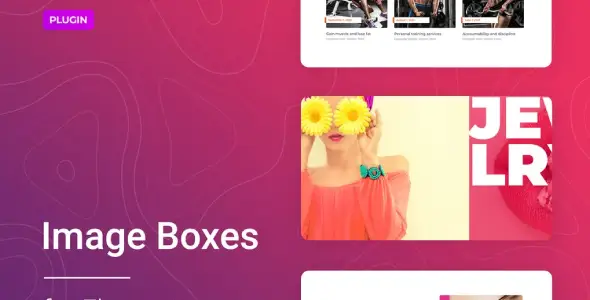
Advanced Image-Box For Elementor GPL Overview
Advanced Image-Box For Elementor is a focused visual-content addon for WordPress websites built with Elementor. The developer, Merkulove, also presents the plugin under the name Imager. Its purpose is to turn ordinary images, information boxes, blog posts, and WooCommerce products into polished visual cards that can respond to a visitor’s hover with movement, flipping, or other animation effects. Instead of assembling an image, heading, description, link, and animation from several separate widgets, a designer can manage the complete presentation from one dedicated Elementor element.
This approach is useful when a page needs more than a static photograph. A service section may require an image, a concise explanation, and a clear destination link. A blog landing page may need featured images, categories, dates, and titles. An online shop may want selected products displayed as attractive promotional cards. Advanced Image-Box For Elementor brings those pieces together and provides controls for their order, appearance, spacing, and responsive behaviour.
The downloadable package offered here is intended for users who understand GPL-distributed WordPress products and want to evaluate or use the plugin on an Elementor website. It is not a hosted design service and it does not replace WordPress, Elementor, or WooCommerce. Because the product title on this page does not specify a version number, check the archive information and test compatibility with your current WordPress, PHP, theme, and Elementor versions before using it on a production site.
What The Imager Widget Adds To Elementor
Elementor can already combine images and text, but a reusable image-card widget makes that process faster and more consistent. Imager places the main card decisions in a single interface. You choose the content source, decide which elements should appear, arrange those elements, select the visual mode, and style the finished block. This concentrated workflow is valuable on pages containing many cards because the same design logic can be applied across the entire section.
The plugin supports custom images as well as dynamic content sources. For a manually curated section, you can create image boxes around specific messages or destinations. For editorial layouts, WordPress posts can supply the content. For ecommerce promotion, WooCommerce products can act as the source. The plugin is therefore not limited to a conventional image-and-caption pattern; it can function as a compact presentation layer for several types of existing WordPress content.
Its layout controls also distinguish it from a rigid preset. The official feature description explains that individual box elements can be ordered, added, or removed. That flexibility lets a store emphasise a product name and price, a magazine emphasise an image and category, or an agency emphasise a service title and short description. The widget remains the same, while the information hierarchy changes to fit the page’s purpose.
Key Features And Practical Benefits
Custom Image Boxes
Custom image support is suited to services, team capabilities, portfolio categories, destinations, features, and promotional offers. You select the visual asset and build the surrounding card according to the message. This gives editors a controlled alternative to dynamically generated content when every card needs its own copy, image, or link.
Posts As A Content Source
Post-based cards can turn existing articles into a visually engaging section. Rather than recreating each entry by hand, the widget can draw from WordPress content and present it in the selected image-box style. This is helpful for featured stories, topic collections, resource sections, recent updates, or category-focused landing pages. The card design should still make the article title easy to read and the click destination obvious.
WooCommerce Product Display
WooCommerce products can be used as a source for home-page promotions, campaign pages, featured collections, or compact product highlights inside an Elementor layout. It is best understood as a visual showcase rather than a replacement for the complete WooCommerce shop archive, filtering system, cart, or product template. Core purchasing functions continue to come from WooCommerce and the active theme or builder setup.
Flexible Element Ordering
A card communicates better when its most important information appears first. Advanced Image-Box For Elementor allows the box layout to be adjusted by arranging, adding, or removing supported elements. A product card may lead with the image and product name, while a blog card may foreground the category or date. Removing unnecessary details can also keep compact layouts cleaner.
Overlay And Card Presentation
Text can be displayed over an image, allowing the photograph and message to share the same visual area. This works well for portfolio categories, travel destinations, or campaign blocks. A conventional card treatment can keep text in its own readable area. Choose the mode according to image complexity, text length, contrast, and how much information must remain visible before interaction.
Hover And Text Animation
The plugin’s main creative feature is animation. Image boxes can move, flip, twitch, or react with other supported effects when the pointer hovers over them. Image and text animation settings help develop a distinctive transition. Animation should reinforce the interface rather than compete with content. A consistent effect, moderate duration, and clear resting state will usually create a more professional result than a different dramatic motion on every box.
CSS Image Filters
Included CSS image filters can help a mixed image collection feel more unified. Designers can create a restrained treatment that changes on hover or apply a common visual character across photographs from different sources. Filters are rendered through browser styling, so they can be more efficient than producing a separate edited copy of every image. Always check that product colours, logos, and important details remain accurate.
Responsive Column Controls
The number of columns can be customised for different device sizes. A wide desktop section might support three or four cards, while tablets and phones need fewer columns so images and text remain legible. This is especially important for WooCommerce items and blog cards, where excessive compression can create awkward headings or small touch targets. Review every breakpoint in Elementor and on real devices before publishing.
Five Prepared Templates
The package includes five prepared templates intended to speed up the first design. Templates can help users understand the widget’s structure, animation, and style controls. They are most valuable when adapted to the site’s typography, colour system, spacing rhythm, and content requirements. Changing only the images while leaving every default style untouched can make unrelated websites look too similar.
Design Controls Inside The Elementor Interface
The widget’s styling options cover the components that typically shape an image card. The official listing identifies colour, typography, background colour, border, margin, padding, and CSS image filters among the available controls. These settings are handled through the Elementor interface, so routine customisation does not require code. Designers can align the cards with an established brand system and see changes while editing the page.
Start with structure before decoration. Decide the source, select the necessary information, establish the element order, and choose the column count. Next, define typography and spacing so every card remains readable. Apply backgrounds, borders, filters, and animation only after the layout works without them. This sequence reduces rework and makes it easier to identify whether a problem comes from content, responsive layout, or visual styling.
Consistency matters across a grid. Use similar image proportions, keep titles within a sensible length, and edit excerpts to a comparable size. If one card contains substantially more copy, the row may become visually uneven. Dynamic sources require particular attention because titles and images were often created for individual posts or products rather than for a shared promotional grid.
How To Build An Animated Image-Box Section
- Prepare A Safe Test Environment: Back up the website and use a staging copy when installing an unfamiliar downloadable plugin. Confirm that WordPress, Elementor, the active theme, and PHP work normally before adding the archive.
- Install And Activate The Plugin: Upload the valid plugin ZIP from the WordPress Plugins screen, activate it, and look for the Imager or Advanced Image-Box widget in Elementor.
- Choose The Content Source: Select custom content, WordPress posts, or WooCommerce products according to the section’s goal.
- Define The Card Structure: Add the supported elements you need, remove unnecessary details, and arrange the remaining information in a logical reading order.
- Select The Visual Layout: Decide whether text should overlay the image or sit in a clearer card arrangement. Keep contrast and text length in mind.
- Set Columns By Device: Establish desktop, tablet, and mobile column counts. Preview long titles, narrow phones, and landscape tablet widths.
- Style The Elements: Apply typography, colour, background, border, margin, padding, and image-filter settings that match the website.
- Add A Restrained Animation: Choose a hover or movement effect and test its timing. Ensure the content is understandable before and after interaction.
- Check Links And Dynamic Data: Open several cards and confirm that links, post details, and product data are correct.
- Test The Public Page: Check major browsers, touch devices, accessibility basics, page speed, and layout stability before production.
Strong Use Cases For Advanced Image-Box For Elementor
Creative agencies can turn service categories into interactive entry points. A card can combine a representative image with a service name and short outcome-focused explanation. Portfolio websites can create project-category navigation or highlight selected case studies. Educational websites can present course topics, departments, or learning resources in a more visual format.
Publishers can build featured article strips, category highlights, or curated reading lists using posts as the source. Ecommerce teams can display seasonal picks, selected categories, or promotional collections through WooCommerce content. Hotels, restaurants, property businesses, and travel websites can use manually prepared boxes for rooms, menus, destinations, facilities, or packages.
The widget also works for smaller informational groups such as key benefits, campaign themes, or resource types. It is less suitable when a page requires advanced faceted filtering, complex database queries, deeply customised conditional logic, or a complete archive system. In those cases, use a suitable listing or query solution and reserve Imager for focused visual sections.
SEO And Content Recommendations
An animated card is still content, so its SEO value depends on meaningful text, useful destinations, and a sensible page structure. Write descriptive titles that match what visitors will find after clicking. Avoid using a vague “Learn More” label as the only meaningful text. Keep excerpts concise but specific, and use relevant images that support the subject rather than acting only as decoration.
Image optimisation is essential. Resize images to realistic display dimensions, compress them appropriately, use modern formats when supported, and provide accurate alternative text for informative images. Do not repeat the same keyword in every title or alt attribute. Alternative text should explain the image’s purpose in context, while surrounding headings and copy describe the section naturally.
Search engines and visitors benefit from stable, usable pages. Excessive motion, oversized images, or huge card grids can slow rendering and distract from the main information. Limit the items to what the section genuinely needs, use a compatible image-loading setup, and test Core Web Vitals after publishing. If the page already contains many Elementor addons, audit scripts and styles instead of assuming another widget has no performance cost.
For more design-oriented downloadable tools, browse the WordPress Plugins Collection. If the same landing page also needs expressive titles, consider Advanced Heading And Animated Text For Elementor. Use visual tools selectively so the page maintains a coherent hierarchy.
Accessibility And User Experience Guidance
Important information should not exist only in a hover state. Touchscreen users may never trigger desktop-style hover, keyboard users require a visible focus path, and some visitors reduce motion at operating-system level. Keep essential titles and destinations available without relying on animation. Test whether card links can be reached and activated with a keyboard, whether focus indicators remain visible, and whether text contrast works against the chosen image.
Overlay layouts demand special care. A bright or detailed photograph can make text unreadable even when the same colour combination works on another image. Use a reliable overlay, gradient, solid content area, or image treatment rather than checking only the easiest example. Avoid placing long paragraphs over photographs; short, purposeful labels and summaries suit this format better.
Motion should be predictable and comfortable. Use similar effects across related cards, avoid rapid flashing or constant movement, and check whether transforms cause surrounding content to shift. A hover effect should signal interactivity or reveal supporting information, not hide the only route to the linked page. When a static card communicates more clearly, simplicity is the better choice.
Compatibility And Testing Notes
The official marketplace description references Elementor 2.5 and higher, WordPress 5+, responsive and Retina-ready output, RTL support, translation through an included POT file, and major browsers such as Chrome, Firefox, Safari, Opera, and Edge. Those statements describe the environment documented by the original listing; they should not be treated as a guarantee for every modern combination of WordPress, Elementor, PHP, WooCommerce, theme, caching layer, or browser.
Before production use, inspect the actual package version and its changelog if available. Test widget discovery, editor loading, dynamic post and product queries, responsive columns, links, image filters, hover effects, RTL display when required, and translated strings. Also check the browser console for JavaScript errors and review the public page while logged out. A conflict may appear only on the front end or after optimisation files are combined.
If styling looks wrong, compare the page on staging with performance optimisation temporarily disabled, regenerate Elementor CSS and data, clear all cache layers, and test with a simple Elementor-compatible theme. If dynamic cards return unexpected items, review the selected source and category first. For WooCommerce content, make sure products are published and have consistent images and data. Re-enable integrations one at a time after identifying the cause.
Download And Installation Guidance
Download the archive to a secure local location and inspect its structure. Some marketplace downloads contain documentation and other files around the installable plugin ZIP. WordPress requires the plugin archive itself; uploading a wrapper package can produce an invalid package message. That error commonly means the wrong ZIP was selected.
Create a full database and file backup before installation. On a staging site, go to Plugins, choose Add New, use Upload Plugin, select the correct ZIP, and activate it. Open a test page in Elementor and confirm that the widget appears. Build a small sample with the desired source, save the page, and check the result in a private browser window at desktop, tablet, and mobile widths.
A GPL download provides distributable files, but it does not automatically provide the original marketplace account, subscription services, author support, activation credentials, or automatic updates tied to another vendor’s purchase system. If a project requires those services, obtain the appropriate licence directly from the original developer or marketplace. Keep the installed package maintained and never leave an abandoned test plugin active on a live site.
Frequently Asked Questions
Does This Plugin Replace Elementor?
No. It is an addon designed to supply an advanced image-box widget inside Elementor. Elementor must be installed and working. Verify the exact dependency requirements of the downloaded package before activation.
Can It Display WooCommerce Products?
Yes. The official product information lists WooCommerce products as a supported content source. WooCommerce must be installed, products must be prepared correctly, and the cards should be tested for links, images, text length, and responsive layout.
Can It Display WordPress Posts?
Yes. Posts are a supported source. This can support featured content or category-oriented sections, but the widget is not a substitute for every archive, pagination, search, or advanced filtering requirement.
Can I Create Boxes Manually?
Yes. Custom image support allows a designer to prepare purpose-built boxes rather than relying only on posts or products. This is useful for services, features, portfolio categories, destinations, and campaign links.
Is Coding Required For Styling?
Routine design controls are available through Elementor, including typography, colours, backgrounds, borders, spacing, image filters, layout, animation, and responsive columns. Custom development may still be needed for behaviour beyond the widget’s controls.
Does The Package Include Templates?
The official listing states that five prepared templates are included. Availability can depend on the exact package version, so inspect the downloaded files and documentation. Treat templates as editable starting points rather than final brand designs.
Will It Work With Every Theme And Plugin?
The developer describes compatibility with Elementor-based WordPress themes, but no addon can guarantee conflict-free operation with every theme, extension, caching configuration, and version combination. A staging test is the reliable way to confirm your environment.
Why Choose Advanced Image-Box For Elementor?
Advanced Image-Box For Elementor is a practical choice when a page needs reusable visual cards with more control than a basic image-and-text block. It brings custom content, posts, and WooCommerce product sources into one Elementor workflow, then adds element ordering, overlay presentation, responsive columns, filters, and animation. Those capabilities can shorten design work while giving related cards a consistent structure.
The best results come from restraint and preparation. Use strong images, concise text, intentional destinations, accessible contrast, modest motion, and device-specific layouts. Confirm the package version, test it against the current site stack, and measure the completed page rather than judging only inside the editor. With that process, the widget can support polished service grids, article collections, portfolio navigation, product promotions, and other content-led sections without turning the page into disconnected effects.
GPLCARE Updater Plugin
GPLCARE Updater Plugin Tutorial
New to GPLCARE? Watch this step-by-step tutorial to learn how to install, activate, and use the GPLCARE Updater Plugin directly from your WordPress dashboard.

Easy Installation Guide
Install the GPLCARE Updater Plugin in a few steps.

Update Management
Update themes and plugins directly from WordPress.

Tips & Best Practices
Keep your website updated and secure.
Support and updates
What is included?
Documentation You will find the item’s documentation within the .zip file you download.
Updates Available
You'll always have access to the latest features, fixes, and security updates. Simply re-download the item to get the most up-to-date files. You can find the updates change-log on the item’s description.
What is not included?
Author Support
Author support is not available for items downloaded on GPLCare. If you need support from this item’s author, we recommend you take a look at this item on Original Author. If support is offered, you will receive 6 months of support when you purchase the item there.
Technical support from GPLCare
GPLCare doesn’t offer technical support for individual items. If you need further assistance, please visit our Help center and create Support Tickets here.
Automatic updates All updates require manual installation.
Only logged in customers who have purchased this product may leave a review.
Related products
-90%
Original price was: $29.00.$2.99Current price is: $2.99.
-90%
Original price was: $29.00.$2.99Current price is: $2.99.
-90%
Original price was: $29.00.$2.99Current price is: $2.99.
-90%
Original price was: $29.00.$2.99Current price is: $2.99.
Reviews
Clear filtersThere are no reviews yet.